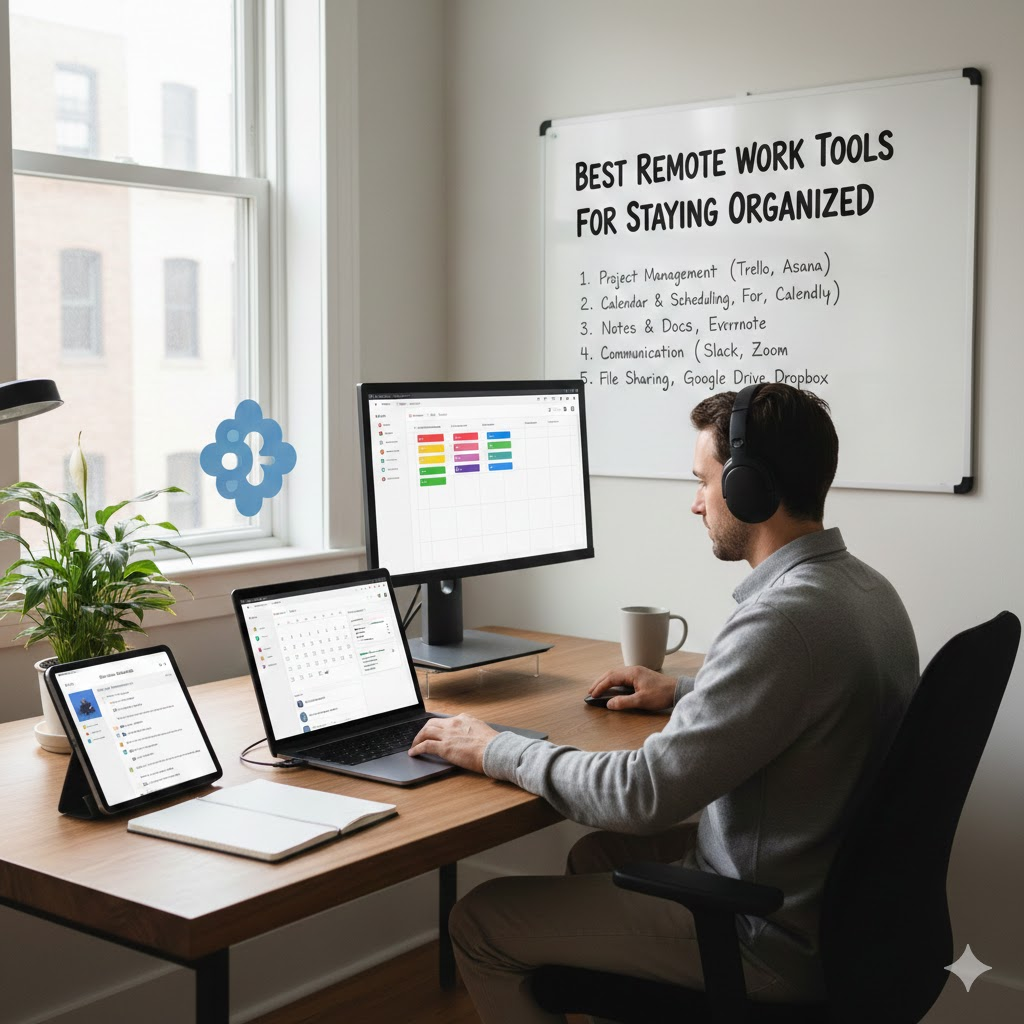

Remote work productivity hinges on the right setup-Stanford research shows equipped workers boost output by 13%. Yet many struggle with subpar tools.
Discover essential hardware like high-performance laptops and ergonomic peripherals, communication apps (Zoom, Slack), productivity platforms (Asana, Toggl), cloud storage, security must-haves, and wellness boosters to transform your workflow.
Unlock peak efficiency today-what’s missing from your kit?
Essential Hardware for Remote Work
Investing in the right hardware transforms remote work productivity. Proper setups reduce fatigue and boost output through better ergonomics. Research suggests ergonomic adjustments can lead to notable productivity gains.
Remote workers often face back strain and connectivity issues without the right tools. Laptops, peripherals, and internet form the foundation of a solid home office setup. These essentials prevent common pain points in work from home environments.
Start with a reliable laptop for core tasks. Add ergonomic peripherals to maintain comfort during long hours. Ensure stable internet to support video conferencing and collaboration.
Building this tech essentials kit supports daily productivity. It helps remote workers stay focused and efficient. Transition to specific recommendations for each category.
High-Performance Laptop
Choose laptops with strong processors, ample RAM, and solid storage for seamless multitasking. The MacBook Pro M3 handles multiple apps like Zoom and browser tabs without lag. It suits creatives with its optimized software ecosystem.
Consider your role when selecting. Developers may prefer Windows options with more ports. Digital nomads value lightweight designs for travel.
| Model | Price | Battery Life | Best For | Pro | Con |
| MacBook Pro M3 | $1,599 | 18hr | Creatives | Ecosystem | Price |
| Dell XPS 15 | $1,299 | 14.5hr | Developers | Ports | Weight |
| Lenovo ThinkPad X1 Carbon | $1,400 | Ultrlight 2lb | Digital nomads | Keyboard | Graphics |
| HP Spectre x360 | $1,199 | Good | Managers | Versatile 2-in-1 | Battery |
For managers, a versatile 2-in-1 like the HP Spectre x360 works well for presentations. Pair with external monitors for dual setups. Test battery life to match your workday needs.
Ergonomic Peripherals
Ergonomic gear helps prevent strain during long remote work sessions. Experts recommend quality peripherals for comfort. A good mouse reduces wrist discomfort over time.
Essential items include these six options:
- Keychron K8 keyboard ($79, mechanical switches) for precise typing.
- Logitech MX Master 3S mouse ($99, long battery life) for smooth navigation.
- VariDesk standing converter ($279) to alternate sitting and standing every 15 minutes.
- Twelve South BookArc laptop stand ($50) to improve airflow and posture.
- Dell UltraSharp U2720Q monitor ($400, 27in 4K) for dual monitor setups.
- Herman Miller Aeron chair ($1,200) for back support in home offices.
For setup, position the monitor at eye level with the laptop stand below. Use CableMod ($20) for cable management to keep your desk tidy. This arrangement supports better workflow and reduces clutter.
Reliable Internet Setup
Stable internet is vital for Zoom calls and file sharing in remote work. Aim for fast download speeds to handle downloads smoothly. Upgrade from basic ISP routers for better performance.
Follow this numbered setup for reliability:
- Run a speed test targeting low ping under 50ms.
- Install Netgear Orbi mesh system ($350) for coverage up to 7,500sqft.
- Add TP-Link RE650 extender ($80) to boost range by 2,500sqft.
- Use APC UPS 1500VA ($180) for 10 minutes of backup power.
- Connect with Ethernet Cat6 cable ($15/50ft) for wired stability.
Avoid the common mistake of the 2.4GHz band, which slows connections. Switch to 5GHz for faster throughput in video conferencing. Pair with a VPN like NordVPN for secure remote access.
Core Communication Tools
Effective communication tools help remote workers stay connected and cut unnecessary meetings. They support video conferencing for face-to-face interactions and messaging platforms for quick updates. These essentials reduce email overload and keep remote teams cohesive.
Video calls build trust in virtual settings, while chat apps handle async discussions. For example, use channels for project updates instead of long email chains. This setup boosts team productivity in work from home environments.
Choose tools based on team size and needs, such as integration with Google Workspace or Microsoft 365. Pair them with noise cancellation headsets for clear audio. Regular check-ins prevent miscommunication in hybrid work setups.
Experts recommend testing free tiers first to match your home office setup. Combine video and messaging for balanced collaboration. These tech essentials support flexible work without constant meetings.
Video Conferencing Apps

Zoom leads in popularity for remote work, offering high-quality video and large meeting support that suits external collaborations. Its intuitive interface makes it a go-to for video conferencing. Features like virtual backgrounds enhance professional appearances during calls.
Microsoft Teams excels in enterprise settings with strong Office integration. It handles internal teams well but can feel slower for casual use. Google Meet provides simple access for small businesses through Gmail sync.
| App | Price | Key Features | Best For | Pros | Cons |
| Zoom Pro | $15.99/user/mo | 40min free limit, virtual backgrounds, external meetings | External meetings | UX | Security |
| Microsoft Teams | $6/user/mo E3 | 300 participants, Office integration | Internal teams | Compliance | Clunky |
| Google Meet | $6/user/mo | 100 participants free, Gmail sync | SMBs | Simple | Features |
| Jitsi Meet | Free, self-hosted | No limits, privacy-focused | Privacy needs | Secure | Setup |
For privacy, try Jitsi Meet as a self-hosted option. Test screen sharing in a trial meeting to ensure smooth online collaboration. Pair with a good webcam and ring light for better virtual meetings.
Team Messaging Platforms
Slack channels streamline discussions and keep async remote teams aligned without extra meetings. Use threads like #project-update for focused updates. This approach supports quick collaboration in distributed teams.
Microsoft Teams bundles messaging with file sharing for enterprise users. Discord offers voice channels that appeal to dev teams with its familiar layout. Limit to 5-10 channels per project to avoid clutter.
| Platform | Price | Key Features | Best For | Pros | Cons |
| Slack Pro | $8.75/user/mo | 250K msg history, 10K apps | Creative teams | Apps | Price |
| Microsoft Teams | Bundled | Unlimited history, Office 365 | Enterprise | Files | Slow |
| Discord | Free Nitro $9.99 | Voice channels | Dev teams | Gaming UX | Professionalism |
Set up integrations with calendar apps like Google Calendar for reminders. Use reactions and pins for efficient async work. These productivity tools enhance team productivity in remote setups.
Productivity and Task Management
Task tools boost completion rates for remote workers. They help manage workflows in a home office setup. Clear visibility prevents common pitfalls in remote work.
Poor task visibility often leads to project failures. Project boards enable team coordination across time zones. They keep everyone aligned on priorities.
Time tracking adds personal accountability. It complements project boards by showing actual time spent. Together, these systems drive remote productivity.
Remote teams use these productivity tools to stay focused. For example, assign tasks on a board and log hours daily. This setup supports work-life balance.
Project Management Software
Asana powers projects effectively for larger teams. It offers features like custom fields to track detailed task data. Remote workers rely on it for smooth collaboration.
Choose software based on team size and needs. Project boards like Kanban views simplify task flow. Setup templates speed up onboarding for new users.
| Tool | Price | Key Features | Best For | Pro | Con |
| Asana Premium | $10.99/user/mo | Custom fields, Workload view | Teams >5 | Reporting | Learning curve |
| Trello Power-Ups | $5/user/mo | Kanban, Simplicity | Solopreneurs | Visual | Scale |
| Notion | $8/user/mo | Database, Everything app | Creatives | Flexible | Templates |
| ClickUp | $5/user/mo | 15 views, Everything | Agencies | Power | Complex |
Start with a basic Kanban board template for quick wins. Add custom fields for deadlines and assignees. This keeps remote collaboration software organized.
Time Tracking Tools
Toggl Track users report better efficiency in billing. Its idle detection highlights time sinks like social media. Remote workers use it to reclaim focus hours.
Track time with simple tools for freelancers and teams. Set up a 1-click timer and review weekly reports. This builds accountability in work from home routines.
| Tool | Price | Key Features | Best For | Pro | Con |
| Toggl Track Pro | $10/user/mo | Pomodoro, Client reports | Freelancers | Mobile | Price |
| Clockify | Free Pro $3.99 | Unlimited users | Teams | Free tier | Basic |
| RescueTime Premium | $6/mo | Auto-tracking, 100% passive | Focus | Insights | Privacy |
RescueTime shows average workers face distractions for about 2 hours daily. Pair it with Pomodoro sessions via Toggl. Generate reports to adjust your daily planner.
Document and File Collaboration

Real-time collaboration saves hours each week for teams using tools like Google Workspace. Simultaneous editing in Google Docs eliminates version confusion and keeps everyone on the same page. Email attachments often cause delays in remote work setups.
Cloud storage solutions enable instant sync across multiple devices for distributed teams. Workers can access files from laptops, tablets, or phones without hassle. This supports smooth online collaboration in work from home environments.
Focus on productivity tools with real-time co-editing features to boost team productivity. Distributed teams benefit from changes that appear live during edits. Version history tracks every update, reducing errors in home office setups.
Essential apps like these connect with collaboration software such as Slack or Microsoft Teams. Remote workers gain efficiency by sharing documents directly in chats. This setup enhances work-life balance by minimizing back-and-forth emails.
Cloud Storage Solutions
Google Drive leads with strong integration options in its Business plans. It offers robust search features and ties into the Google ecosystem. Remote workers appreciate its ease for daily file sharing.
Compare key cloud storage options using this table for quick insights into pricing, storage, and strengths.
| Feature | Google Drive Business | Dropbox Business | OneDrive |
| Pricing (per user/mo) | $12 | $15 | $6 (with 1TB) |
| Storage | 30GB/user free tier | 3TB/team | 1TB/user |
| Key Strengths | Office integration, Google ecosystem | Advanced sync for creatives | Office 365, Microsoft stack for enterprise |
| Pros | Powerful search | High speed | Strong compliance |
| Cons | Privacy concerns | Higher price | User experience quirks |
| Version History | 100 versions | Unlimited | Robust retention |
Picture a team editing a project proposal: one remote worker updates numbers in Google Sheets while another adds comments in real-time. Changes sync instantly across devices, avoiding outdated versions. This real-time editing scenario keeps hybrid work teams aligned.
Choose based on your stack, like Microsoft 365 users picking OneDrive for seamless Excel ties. Dropbox excels for creative teams needing fast sync. Test free tiers to match your home office setup needs.
Security and Privacy Essentials
Remote workers face heightened cyber risks when accessing company networks from public WiFi or home setups. VPNs encrypt internet traffic to block ISP tracking and secure connections. Password managers generate strong, unique passwords to prevent common breaches.
Data protection is crucial for remote work productivity. Experts recommend combining VPNs with password tools and two-factor authentication. These essentials safeguard sensitive files in cloud storage like Google Drive or Dropbox.
Practical steps include enabling device encryption and regular software updates. Use antivirus software alongside these tools for layered defense in your home office setup. This approach supports secure collaboration via Zoom or Microsoft Teams.
Focus on habits like avoiding phishing emails. Integrate security into daily workflows with browser extensions for password checks. These measures ensure peace of mind for digital nomads and hybrid workers.
VPN and Password Managers
NordVPN offers 6,400 servers at $3.99 per month on a two-year plan and matches top speeds around 10Gbps. It beats ExpressVPN on price while providing strong encryption for remote workers. Choose based on needs like streaming or team use.
VPNs protect against threats on public networks during travel or coffee shop sessions. They hide your IP and enable secure access to work tools like Slack or Asana. Pair with unlimited device support for family or team setups.
| Service | Price | Key Features | Pros | Cons |
| NordVPN | $3.99/mo | 6,400 servers, Double VPN, Streaming | Price | Apps |
| ExpressVPN | $8.32/mo | Lightway protocol, 105 countries, Speed | UX | Price |
| Surfshark | $2.49/mo | Unlimited devices, Teams | Cheap | Newer |
Password managers store credentials securely and autofill logins for apps like Google Workspace. 1Password’s Watchtower alerts to weak or reused passwords. Enable two-factor authentication with Authy for extra layers on accounts.
| Service | Price | Key Features | Pros | Cons |
| 1Password | $2.99/mo | Watchtower, Families | UX | Price |
| Bitwarden | Free, Premium $10/yr | Open source, Techies | Free | UX |
| LastPass | $3/mo | Emergency access, Business | Features | Breach history |
Set up 2FA with Authy by scanning QR codes from services like Microsoft 365. It generates time-based codes on your phone for logins to Trello or Notion. This simple step blocks unauthorized access even if passwords leak.
Wellness and Focus Boosters
Burnout affects remote workers heavily. Tools like Forest help users gain focused work time each week. These productivity tools support work-life balance in home office setups.
Focus apps block distractions and build habits. They fit into daily routines for remote work. Pair them with mindfulness practices for better results.
Experts from the Huberman Lab recommend protocols like timed light exposure and breathing exercises. Combine these with tech essentials for sustained focus. This approach enhances team productivity during virtual meetings.
- Forest ($1.99, plants real trees, 25min blocks): Grow virtual trees by staying focused, turning concentration into real-world impact.
- Freedom ($6.99/mo, blocks 50+ sites): Schedule blocks for social media and news sites to maintain deep work sessions.
- Focus@Will ($9.99/mo, neuroscience music): Play channels designed to boost concentration during long tasks.
- Headspace ($12.99/mo, 10min meditation): Guide short sessions to reduce stress before video conferencing calls.
- Apple Watch Series 9 ($399, Stand reminders): Get prompts to move hourly, countering sedentary remote work habits.
- Toggl Habitica (free, gamifies habits): Turn tasks into RPG quests for fun habit tracking alongside time tracking.
Pomodoro Setup for Peak Productivity

Use a Pomodoro timer with 25min work followed by 5min breaks. This method builds focus in work from home environments. The free Chrome extension StayFocusd enforces limits on distracting sites.
Start your session by setting a timer for focused task work. Take short breaks to stretch or hydrate. Huberman Lab protocols suggest aligning breaks with natural attention cycles.
For remote teams, share your Pomodoro schedule via Slack or Google Calendar. This boosts collaboration and prevents overload. Track progress with Toggl for better insights.
Frequently Asked Questions
What are the tech essentials every remote worker needs?
Tech essentials for remote workers include both hardware and software that support productivity and communication. This typically includes a reliable laptop, high-speed internet, noise-canceling headphones, and tools like Google Workspace or Notion for collaboration, along with project management and communication apps.
Which communication tools are must-haves for remote work?
Popular communication tools include Zoom and Microsoft Teams for meetings, as well as Slack for messaging. Email services like Gmail or Outlook are also essential for professional communication.
What productivity apps should remote workers use?
Remote workers benefit from apps like Todoist or Microsoft To Do for task tracking, RescueTime for monitoring productivity, and Forest to stay focused and reduce distractions.
How does cloud storage help remote workers?
Cloud storage tools like Google Drive, Dropbox, and OneDrive allow remote workers to store, access, and share files securely from anywhere. This makes collaboration seamless across different locations.
What hardware tools improve a remote work setup?
Important hardware includes a second monitor for multitasking, a high-quality webcam for meetings, and ergonomic accessories like a comfortable keyboard and mouse. Using a VPN also adds an extra layer of security for remote work environments.
Why are time zone and password management tools important?
Time zone tools like World Time Buddy help coordinate meetings across different regions, while password managers like LastPass keep login credentials secure. These tools improve efficiency and reduce errors in remote work.